 Pro Metadata
What is EXIF Data? A Complete Guide to Hidden Image Metadata
Learn what EXIF data stands for, how hidden metadata like GPS location and camera settings are stored in your photos, and how to read it.
What is EXIF Data? A Complete Guide to Hidden Image Metadata
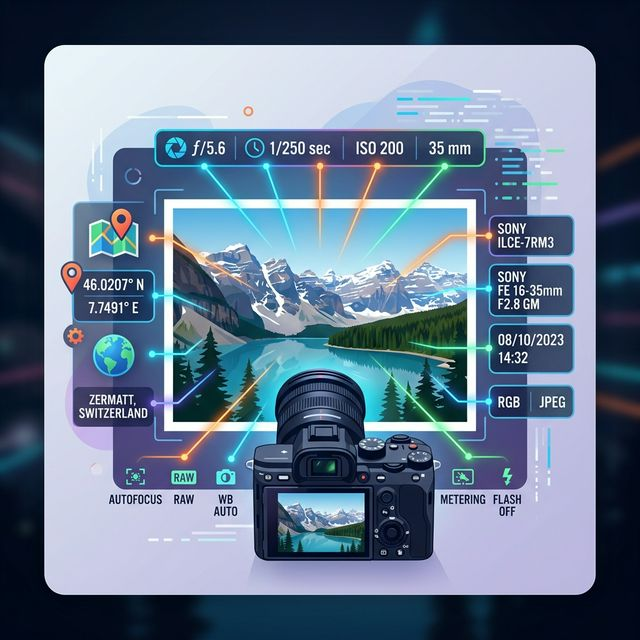
Every time you snap a picture with your digital camera or smartphone, you are capturing much more than just a visual memory. Woven into the digital fabric of the file itself is a hidden text document containing detailed information about how, when, and where the image was created.
This hidden information is called EXIF data.
In this comprehensive guide, we will break down what EXIF data is, why it was created, what specific details are hiding inside your JPEGs, and how you can view this data yourself.
What Does EXIF Stand For?
EXIF stands for Exchangeable Image File Format.
Developed in the late 1990s by the Japan Electronic Industries Development Association (JEIDA), it was created to standardize how metadata is stored inside digital image files. Before EXIF, different camera manufacturers used their own proprietary ways of recording settings, making it impossible to read photo data consistently across different software.
Today, EXIF is the universal standard. Whether you shoot on a Canon DSLR, an Apple iPhone, or an Android device, your device writes standard EXIF tags directly into the image file (most commonly in JPEG and TIFF formats).
What Information is Stored in EXIF Data?
EXIF data is surprisingly detailed. It acts as a digital fingerprint for your photography. If you use a standard EXIF extraction tool, the metadata typically falls into three main categories:
1. Technical Camera Settings (Exposure Data)
This is the data professional photographers care about most. It records the exact mechanical settings of the camera at the moment the shutter clicked:
- Aperture (F-Stop): e.g., f/2.8
- Shutter Speed: e.g., 1/1000 sec
- ISO Speed: e.g., ISO 400
- Focal Length: e.g., 50mm
- Flash Fired: Yes or No
- White Balance: Auto, Manual, Daylight, etc.
2. Device Information
EXIF records exactly what hardware and software were used to capture and process the image:
- Camera Make: e.g., Apple
- Camera Model: e.g., iPhone 15 Pro
- Software Version: e.g., iOS 17.4
- Lens Information: The specific lens attached to a DSLR or mirrorless camera.
3. Date, Time, and GPS Location
This is where EXIF data intersects with digital privacy.
- Timestamps: The exact year, month, day, hour, minute, and second the photo was created, and when it was last modified.
- GPS Coordinates: If location services are enabled on your smartphone or drone, the EXIF data will embed the exact GPS Latitude, Longitude, and Altitude.
Here is an example of what raw EXIF JSON output looks like when extracted:
{
  "Make": "Apple",
  "Model": "iPhone 15 Pro",
  "DateTimeOriginal": "2026-03-23 14:30:00",
  "ExposureTime": "1/120",
  "FNumber": "1.78",
  "ISOSpeedRatings": "100",
  "GPSLatitude": "40 deg 44' 54.36\" N",
  "GPSLongitude": "73 deg 59' 8.36\" W"
}
Why Does EXIF Data Exist?
If EXIF data contains so much sensitive information, why do devices automatically record it?
- For Photographers to Learn and Organize: Photographers use EXIF data to remember which camera settings produced the best shots. Photo management software (like Adobe Lightroom or Apple Photos) uses EXIF timestamps to organize your timeline chronologically.
- For Software Optimization: Social media platforms and web browsers use color profile and orientation data embedded in the EXIF tags to ensure the image displays correctly on your screen without looking stretched, upside down, or color-washed.
- For Copyright Protection: Professional creators can inject their name, website, and copyright claims directly into the EXIF and IPTC metadata so their ownership travels with the file wherever it is downloaded.
How to View the EXIF Data in Your Photos
You don't need to be a programmer to read the hidden data inside your photos. There are a few ways to access it:
On Windows:
- Right-click the image file.
- Select Properties.
- Click the Details tab. Here, you will see a basic list of camera settings and origins.
On Mac:
- Open the image in the native Preview app.
- Go to Tools > Show Inspector in the top menu bar (or press
Command + I). - Click the "i" (More Info) tab, then click the Exif tab.
The Fastest Online Method: Native OS tools often hide complex tags or fail to show GPS data clearly on a map. The fastest way to see everything hidden in your image is to use a free, browser-based tool.
You can drag and drop your photo into the ProMetadata EXIF Extractor. It reads the file locally in your browser (meaning your photo is never uploaded to our servers) and generates a complete, human-readable table of every single EXIF, XMP, and IPTC tag hidden inside.
Conclusion
EXIF data is a powerful, standardized tool that makes digital photography intelligent and searchable. However, knowing that your smartphone is attaching your exact GPS location to every picture you take is the first step to mastering your digital privacy.
Before you upload your next original photo to a public forum, blog, or chat application, take a moment to extract the data and see exactly what you are sharing with the world.
Free tool
Try it yourself — no login required
View, inject, or remove metadata from your images and PDFs free. Works on any browser.
Launch free tool →Frequently asked questions
What does EXIF stand for?
EXIF stands for Exchangeable Image File Format. It is a standard that specifies the formats for images, sound, and ancillary tags used by digital cameras and smartphones.
Does EXIF data show location?
Yes, if your camera or smartphone has location services enabled, the EXIF data will store the exact GPS latitude and longitude where the photo was taken.
Do PNG files have EXIF data?
While PNG files can contain metadata (like XMP), traditional EXIF data is primarily designed for JPEG and TIFF image formats.
More from ProMetadata
← Back to all articles